
Article
How to Get a Dedicated Numeric Keyboard on iPhone
Tired of toggling keys to type digits? Learn how to get a dedicated iOS numeric keyboard extension on iPhone & iPad for faster Excel and data entry.
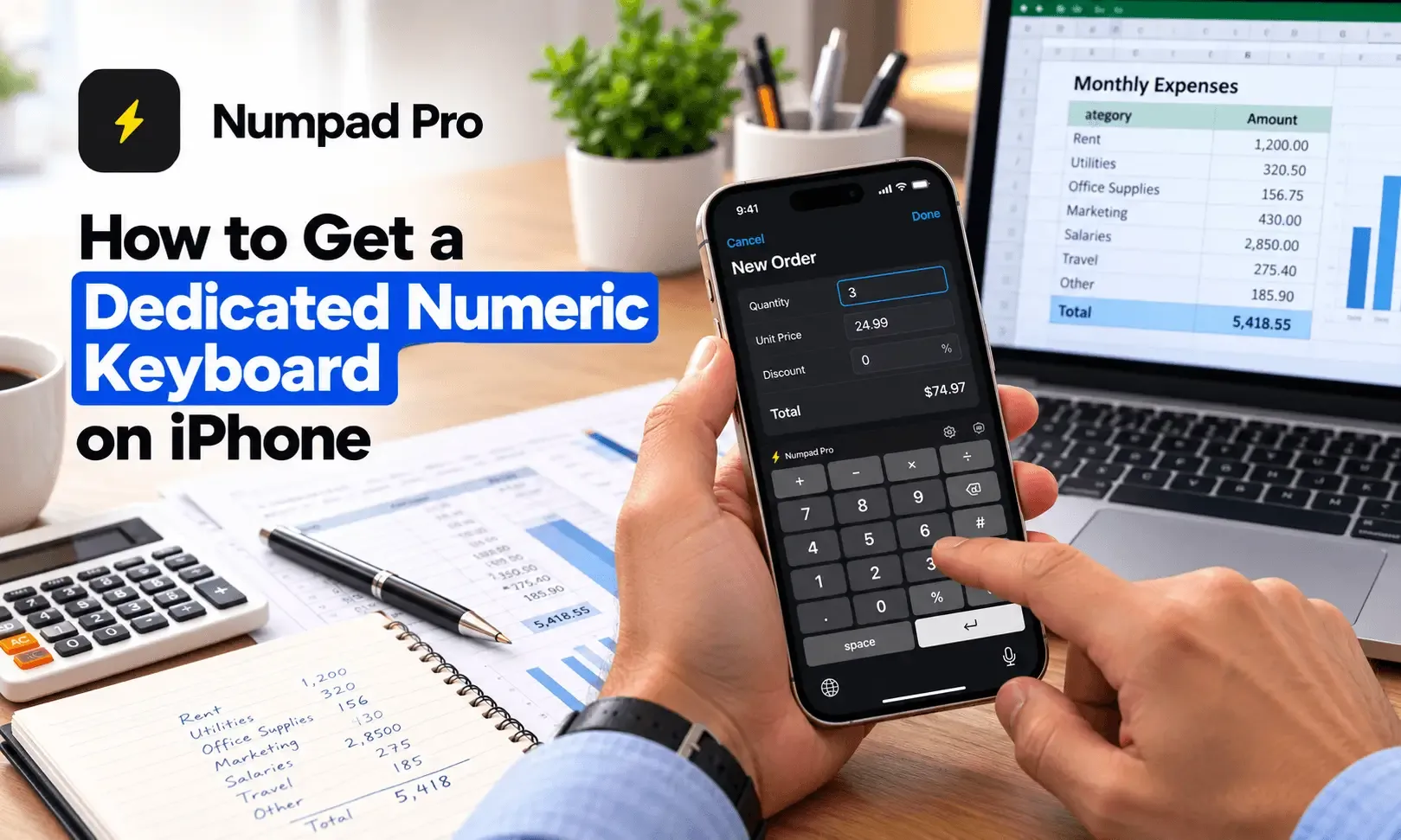
Why the Default iOS Keyboard Slows Down Your Workflow
- * Slow Data Entry in Excel & Sheets: If you manage finances or inventory on your iPad or iPhone, entering continuous values takes twice as long.
- * Accidental Typos: Tapping tiny keys on a crowded layout leads to input errors, which can ruin mathematical formulas or financial records.
- * Frustrating Form Filling: Typing phone numbers, zip codes, and 6-digit OTP codes shouldn't require fighting with an alphabet layout.
The Solution: Upgrade to Numpad Pro for iOS
Key Features of Numpad Pro on iPhone
- True Calculator-Style Layout: Large, spaced-out grid keys designed specifically to mirror standard physical office keyboards.
- Built-In Math & Accounting Keys: Includes dedicated mathematical symbols like the decimal point, minus sign, and percentage keys right on the main layout so you never have to menu-hop for calculations.
- Gorgeous Visual Themes & Dark Mode: Fully customizable aesthetics that seamlessly match your iOS interface. Switch on the eye-friendly dark mode for low-light accounting or pick a theme that matches your personal style.
- Seamless iOS Integration: Once enabled, it works everywhere—inside Safari, Apple Notes, Numbers, Excel, and financial apps.
- Optimized for iPad Productivity: Turns your iPad into a data-entry powerhouse, bridging the gap for users who miss the physical ten-key pad.
- Read also: A Complete Guide to the American Numismatic Association's Coin Shows, Seminars & Webinars
How to Set Up Numpad Pro on Your iPhone
- Download the App: Install Numpad Pro on the App Store.
- Enable the Extension: Open your iOS Settings app, go to General > Keyboard > Keyboards, tap Add New Keyboard, and select Numpad Pro.
- Switch Seamlessly: Tap and hold the Globe icon on your default iOS keyboard anytime you open a form or spreadsheet, and switch to your clean new layout instantly.
Ready to stop fighting your phone keyboard?
Say goodbye to input fatigue. Download Numpad Pro today from the Apple App Store and start typing digits effortlessly!
Handpicked for you: Scan Any Coin and Get Its Value Instantly
Frequently Asked Questions (FAQ)
Q. Is Numpad Pro safe and private to use on iOS?
Yes. Numpad Pro is built with a privacy-first mindset. Unlike many third-party keyboards, it does not track your keystrokes or collect personal data. Your financial entries, pins, and numbers remain completely secure and local to your Apple device.
Q. Do I need to "Allow Full Access" in my iPhone settings?
Numpad Pro is designed to work efficiently with minimal permissions. If any advanced features (like haptic feedback or custom themes) require you to toggle "Allow Full Access" in your iOS settings, rest assured that your data is never uploaded to any external server.
Q. Does this numeric keyboard extension work inside Microsoft Excel and Google Sheets?
Yes. Once enabled, Numpad Pro integrates directly into the iOS system. This means it functions perfectly as a dedicated 10-key numeric layout inside productivity apps like Microsoft Excel, Google Sheets, Apple Numbers, and Notion.
Q. Is Numpad Pro free to download?
[Insert your pricing details here, e.g., "Numpad Pro is free to download with a premium upgrade available for custom themes," OR "Numpad Pro is available as a one-time purchase with no hidden subscriptions."] Check out our official listing on the Apple App Store for current pricing and package details.
Q. Can I use Numpad Pro on both iPhone and iPad?
Yes. Numpad Pro is fully optimized for both iOS and iPadOS. It features a responsive layout that automatically adjusts to provide large, comfortable grid-keys on any screen size.