
0-9
Full numeric keypad
0 through 9, a decimal point, backspace, and return — nothing shared with letters, nothing crammed.
Number keyboard for iPhone
NumPad Pro is a numeric keyboard app for iPhone and iPad that adds a dedicated number pad, a floating math operator row, and a symbol row to any app on iOS.
It swaps the fiddly ".?123" symbols page for a full-size number pad you can call up in any app — Notes, Messages, banking apps, spreadsheets, anywhere iOS lets you type.
Inside the app
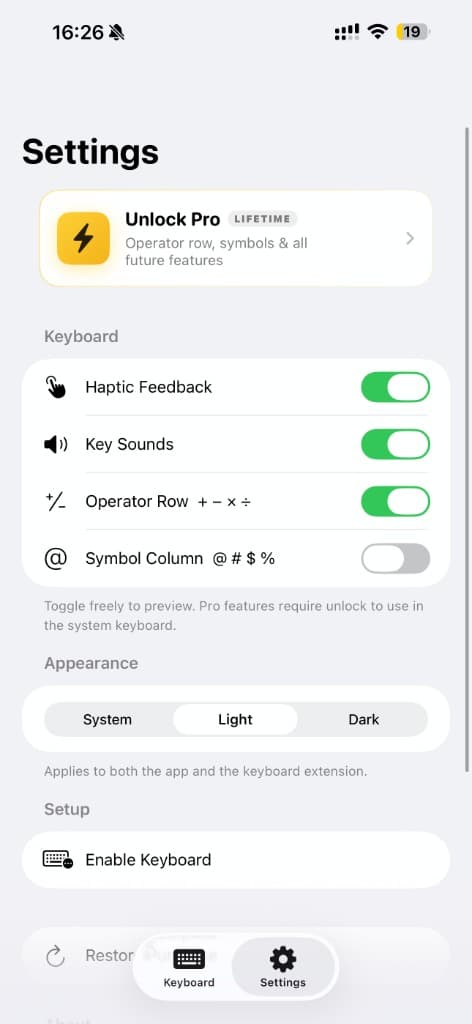
Three views: the keypad in light mode, the same keypad in dark mode, and the settings screen where you tune it to how you work.
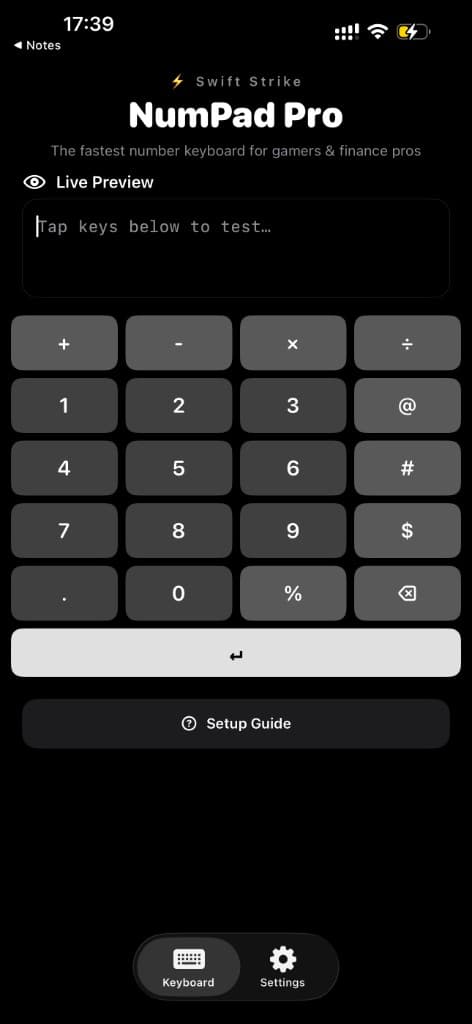
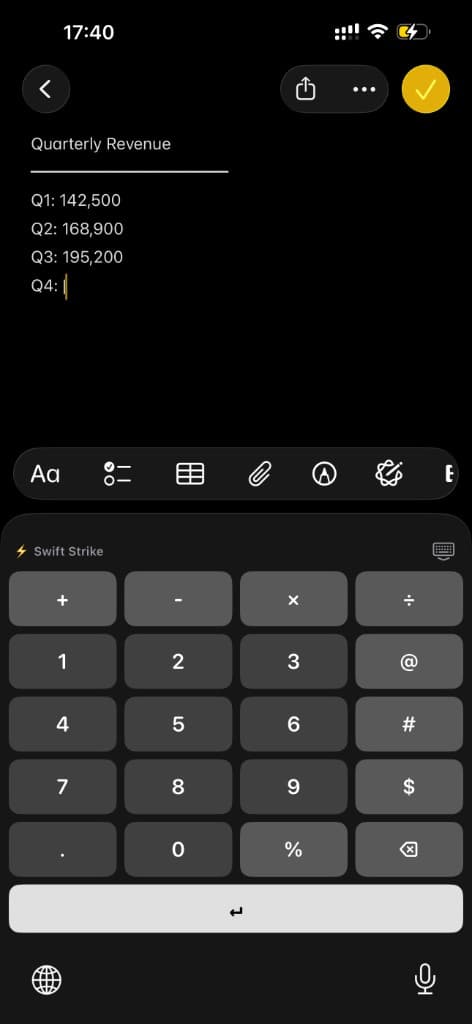
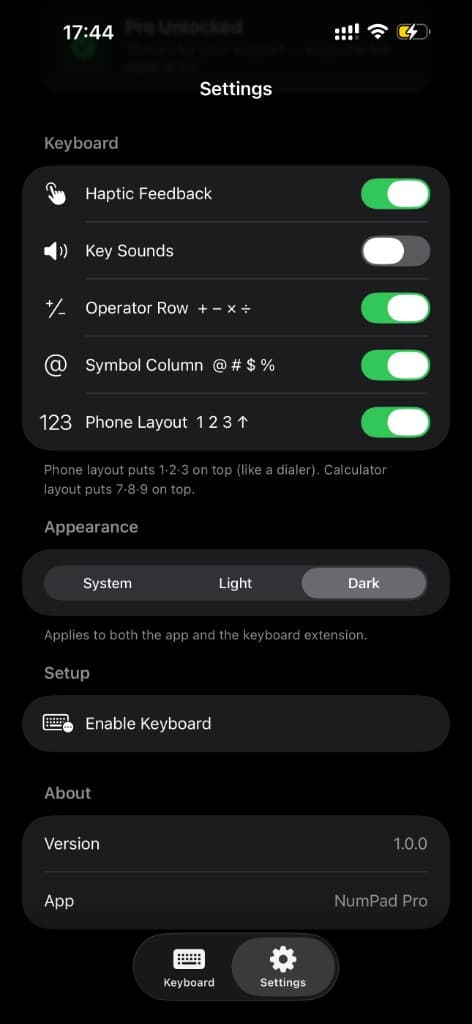
Every price, PIN, score, and phone number gets typed through a keyboard designed for words. That means one extra tap to reach ".?123", tiny digit keys crammed into a letter-sized layout, and a second trip to find a math symbol.
NumPad Pro is built around one job — getting numbers onto the screen fast — and it does that job with detail most keyboards skip.
0 through 9, a decimal point, backspace, and return — nothing shared with letters, nothing crammed.
Plus, minus, multiply, and divide sit right above the pad for instant math input, no separate symbols screen.
@, #, $, and % sit beside the digits, ready for emails, hashtags, and prices.
Follows your iPhone's appearance automatically, or stays pinned to whichever mode you prefer.
A satisfying tap on every key press, with optional click sounds you can turn on or off anytime.
Hold backspace and it speeds up exactly like Apple's own keyboard — no lag, no separate gesture to learn.
If digits are a bigger part of your day than words, this is the keyboard your thumbs have been asking for.
Entering codes, IDs, scores, and stats without hunting for the right key.
Figures, percentages, and formulas typed at the speed you think.
No more toggling between the letter keyboard and the symbols page all day.
Fast numeric entry in Numbers, Excel, and Google Sheets on the go.
Phone numbers, prices, dates, and ID numbers, entered without the fumbling.
iOS treats every keyboard app the same way once it's added — here's exactly where NumPad Pro goes.
Open the Settings app on your iPhone.
Tap General, then Keyboard, then Keyboards.
Tap "Add New Keyboard…" and select NumPad Pro from the list.
Tap NumPad Pro in the list and enable "Allow Full Access" to turn on haptics.
Tap and hold the globe key in any app and choose NumPad Pro. Tap it again to switch back.
Straight answers to the questions people actually search before switching keyboards.
No — iOS does not ship a dedicated number-pad keyboard. The stock keyboard only exposes digits through the ".?123" symbols page, where they share space with punctuation and take up roughly a third of the layout. There is no setting that opens straight to a full numeric keypad, which is the gap apps like NumPad Pro were built to close.
Install a numeric keyboard app from the App Store, then go to Settings, General, Keyboard, Keyboards, and tap "Add New Keyboard…" to select it. Once it's added, you switch to it from any text field by tapping and holding the globe icon on your keyboard and choosing it from the list — the same way you'd switch to any other language or third-party keyboard.
A dedicated numeric keyboard app is faster than the default keyboard for any number-heavy task, because it removes the step of switching to the symbols page and gives every digit a full-size key. NumPad Pro adds a floating operator row and symbol column on top of that, so math symbols and common characters like @ and % never require a second screen either.
It depends entirely on the specific app's privacy practices, since third-party keyboards can technically run in any text field on your phone. NumPad Pro's App Store privacy disclosure states it does not collect any data: it works fully offline, includes no analytics or third-party trackers, and has no server that could see what you type.
Full Access is an iOS permission that lets a third-party keyboard use certain system features, such as haptic feedback, that Apple restricts by default. It does not automatically mean a keyboard sends data anywhere — that depends on what the specific developer does with it. In NumPad Pro, Full Access is used only to enable haptics on key presses, and the keypad works without it if you'd rather leave it off.
Yes — once added in Settings, a third-party keyboard becomes available system-wide, in every app that accepts text input. NumPad Pro works this way in Notes, Messages, Mail, Safari, Numbers, Excel, Google Sheets, banking apps, and any form field, exactly like the default keyboard does, with a tap of the globe key to switch between them.
A numeric keypad app replaces the entire keyboard with large, dedicated digit keys, while a "number row" is just a thin strip of small digits above the letters on some keyboard layouts. NumPad Pro goes further than either: it gives every digit a full-size key plus a dedicated operator row for math symbols, instead of squeezing numbers in alongside letters.
A lightweight keyboard app has no meaningful impact on battery life or speed, since it only runs while you're actively typing. According to NumPad Pro's App Store listing, it runs no background processes, uses no analytics, and makes no network calls, so there's nothing extra running once you switch away from it.
Tap and hold the globe key on NumPad Pro and choose the stock keyboard from the list, or tap the globe once to cycle. NumPad Pro never replaces your default keyboard permanently — it sits alongside it, so you can jump back to letters the moment you need them.
Yes. NumPad Pro supports iPhone and iPad, and it adjusts its layout to the screen. Once the keyboard is added in Settings, it is available in any app that accepts text input, in portrait or landscape, the same way the system keyboard is.
Yes. NumPad Pro is free to download and use, with an optional one-time Lifetime Unlock in-app purchase priced in your local currency on the App Store.
Yes. NumPad Pro supports both iPhone and iPad, and adjusts its layout to fit the screen.
Yes. NumPad Pro runs entirely offline — there's no server involved in typing, so it works exactly the same with Wi-Fi, cellular data, or neither.
Yes. Key click sounds are optional and can be toggled on or off at any time from within the app.
NumPad Pro requires iOS 17.0 or later on iPhone, and iPadOS 17.0 or later on iPad.
Yes. Haptic feedback and key click sounds are independent toggles inside the app, so you can turn either one on or off without affecting the other.
Yes. Per Apple's keyboard extension framework, third-party keyboards handle autofill and password-manager suggestions the same way the system keyboard does, and NumPad Pro follows that standard behavior.
No. According to NumPad Pro's App Store listing, it runs no background processes, uses no analytics, and makes no network calls, so it has no meaningful effect on battery life beyond the moments you're actively typing.
Keyboards see more than almost any other app on your phone — every password, every message, every number. NumPad Pro's App Store privacy disclosure is as short as it gets: data not collected.
Add NumPad Pro once, and every price, PIN, and score gets typed on a keyboard built for exactly that — not squeezed out of one built for words.
Free download · optional one-time Lifetime Unlock · works fully offline